

Publishing integrations in the Sandbox (for partners)
Perform full authorization and integration test between your sandbox account and your application
The Sandbox environment lets you publish integrations to perform authorization and integration tests between a sandbox account and your application.
RequirementsYou need an OAuth application with an authentication interface for your application.
Ensure you are familiar with the needs reading OAuth 2.0
Publishing new integrations
In your Sandbox environment account:
- Go to Settings > Integrations.
- Click on the New integration button.
- Enter your application information:
- Integration name: Your application or product name
- Integration description: A short description of your integration that is displayed on the integrations page as part of the integration card.
- Category: the category that fits best the use cases supported by the application.
- Integration logo: A URL that contains your application logo, ideally a 40x40 px transparent PNG.
- Redirect URL: The application OAuth URL, from which users can authenticate and authorize the integration. Example /external-integrations/connect/travelperk.
- External URL: The URL where users are redirected here when clicking on the Enable button on the integration. The application should sign the user in and start the OAuth handshaking (calling the /oauth2/authorize endpoint).
- Scope: Select the Scopes that the application needs to access.
- Click Create new Integration.
After creating the Integration, you see a pop-up where you can find the client id and client secret of the OAuth application. You need them to set up the OAuth application on your side.
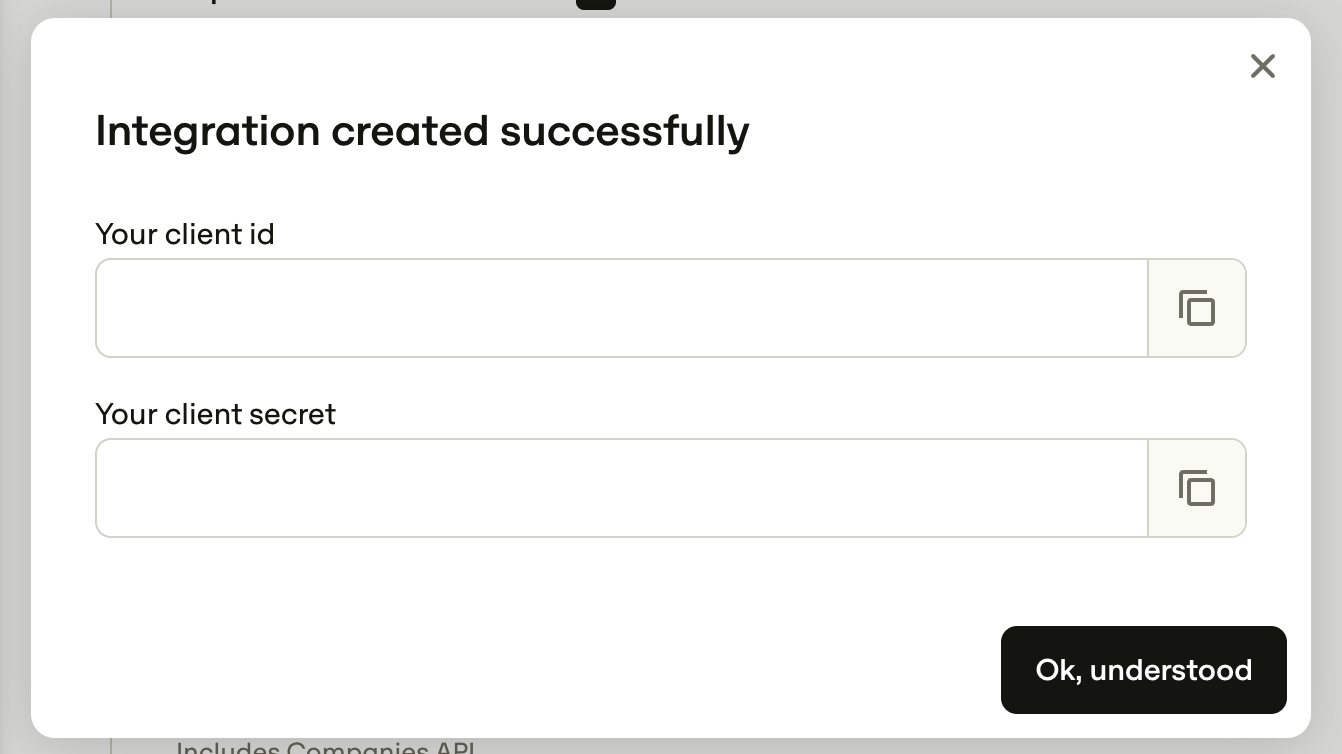
Click Ok, understood to finish the process.
Congratulations, you have successfully created an integration in your sandbox account!
Enabling sandbox integrations
On the Integration detail page, click Enable button. This takes you to the *External URL defined above.

Complete the authorization if necessary introducing the right credentials.
The integration is enabled and ready to be used.
Editing sandbox integrations
At any moment, you can edit the settings of an application by clicking Edit integration on the integration detail page.
Deleting sandbox integrations
To delete an application from the Integrations page, click Delete integration button on the integration details page. Confirming the action completely deletes the application from your sandbox account.
Updated 6 days ago