

Postman collection
Get your Perk Postman collection and start playing.
In this section, you learn how to configure Postman to start testing Perk's API in sandbox or production environment.
Before implementing the full solution, you can use a tool like Postman to test the entire functionality of Perk without coding a single line.
Step 1 - Install the collection
To install the Postman Collection, you must install the Postman App for Windows, Mac or Chrome. You can download any of these from the Postman Apps page. Postman requires you to sign into your account to be able to import the collection. If you don’t have one, you need to register before proceeding further.
Use this button to install the collection:

Postman prompts whether you want to open the Collection in Postman for Chrome or Postman for Windows / Mac. Select the application you installed.
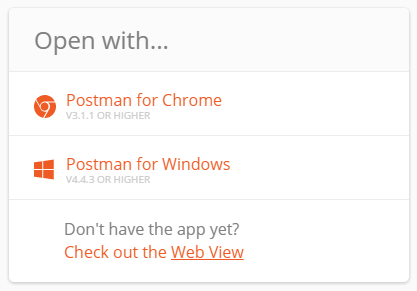
Once you make a selection, the selected Postman application opens and the collection is imported.
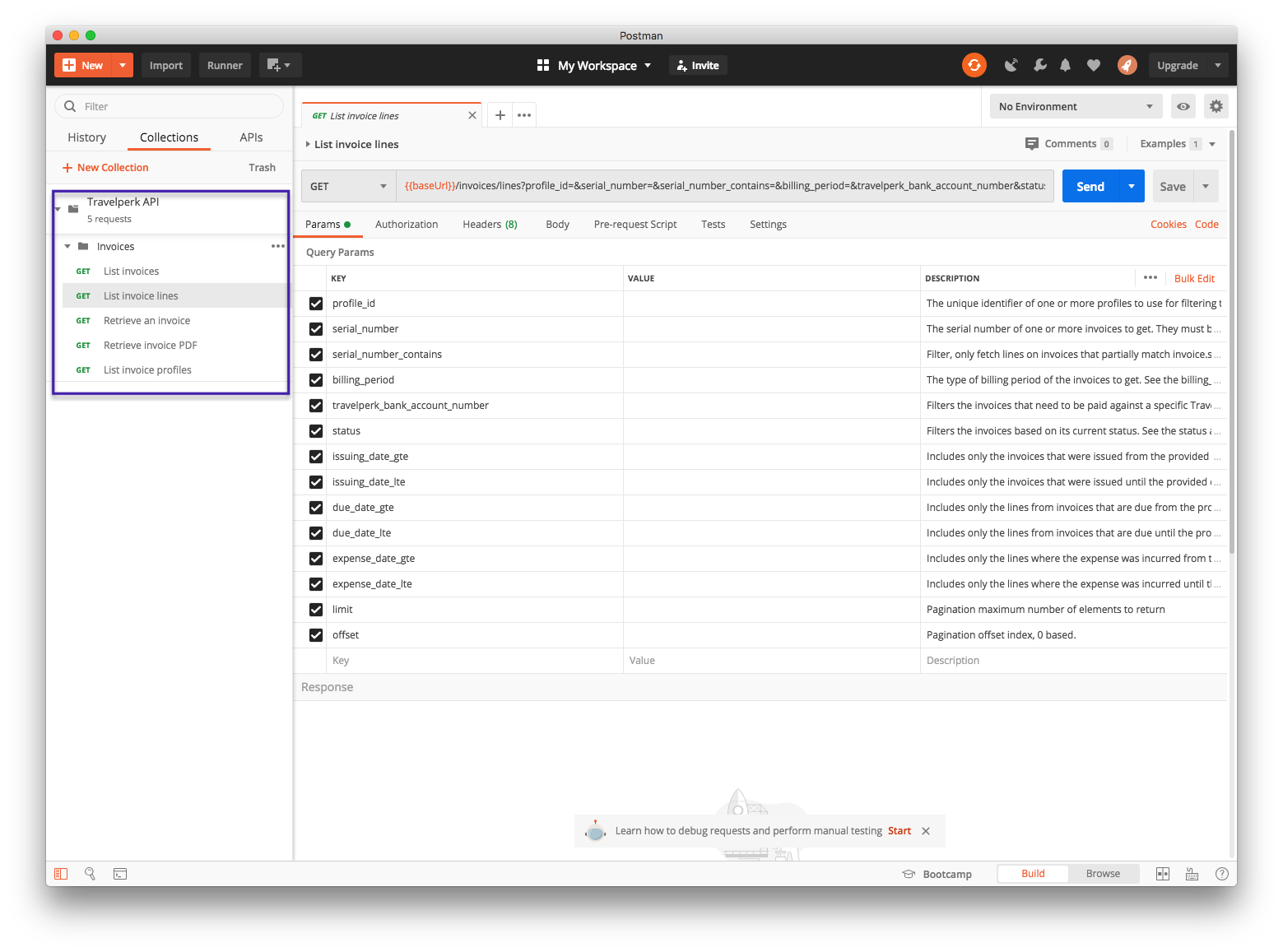
Collection foldersOur API collections are organized in folders that categorize the various API calls. For example, you find all the Invoices methods under the Invoices folder.
Step 2 - Configure the Postman Environment
Perk offers two environments:
- Sandbox: a sandbox environment with test data perfect for test and development phases
- Production: our live environment used in production
The Perk Postman collections make use of environment variables to customize the requests that are sent. More information on managing Postman environments can be found at Setting up an environment with variables.
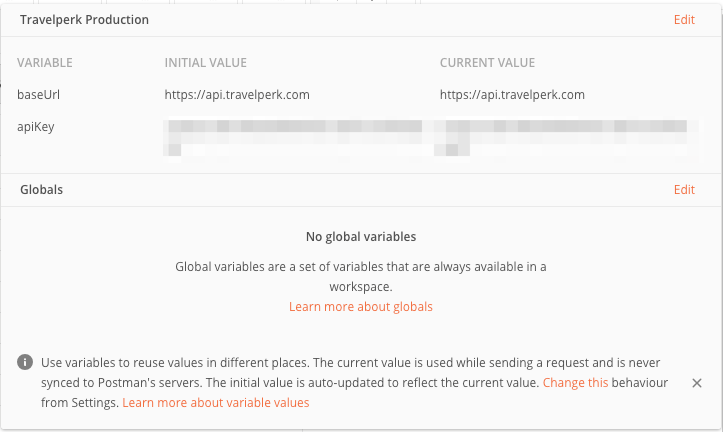
You must create an environment and configure the following variables:
- apiKey: your Api Key
- baseUrl: https://api.sandbox-perk.com (for sandbox) or https://api.perk.com (for production)
- scimUrl: https://app.sandbox-perk.com/api/v2/scim (for sandbox) or https://app.perk.com/api/v2/scim (for production)
- apiVersion: set to
1; this is the current version of the API
NotePerk APIs can also be contacted at https://api.travelperk.com and https://app.travelperk.com/api/v2/scim; however we recommend you use the Perk domain as future compatibility is not guaranteed.
If you are not sure on how to get the API key for each environment, you can check our guide on how to Get your API keys.
In the screenshot below, you can see a Postman environment configured with the ApiKey and baseUrl variables defined:
Step 3 - Execute a request
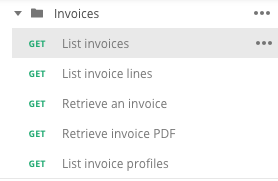
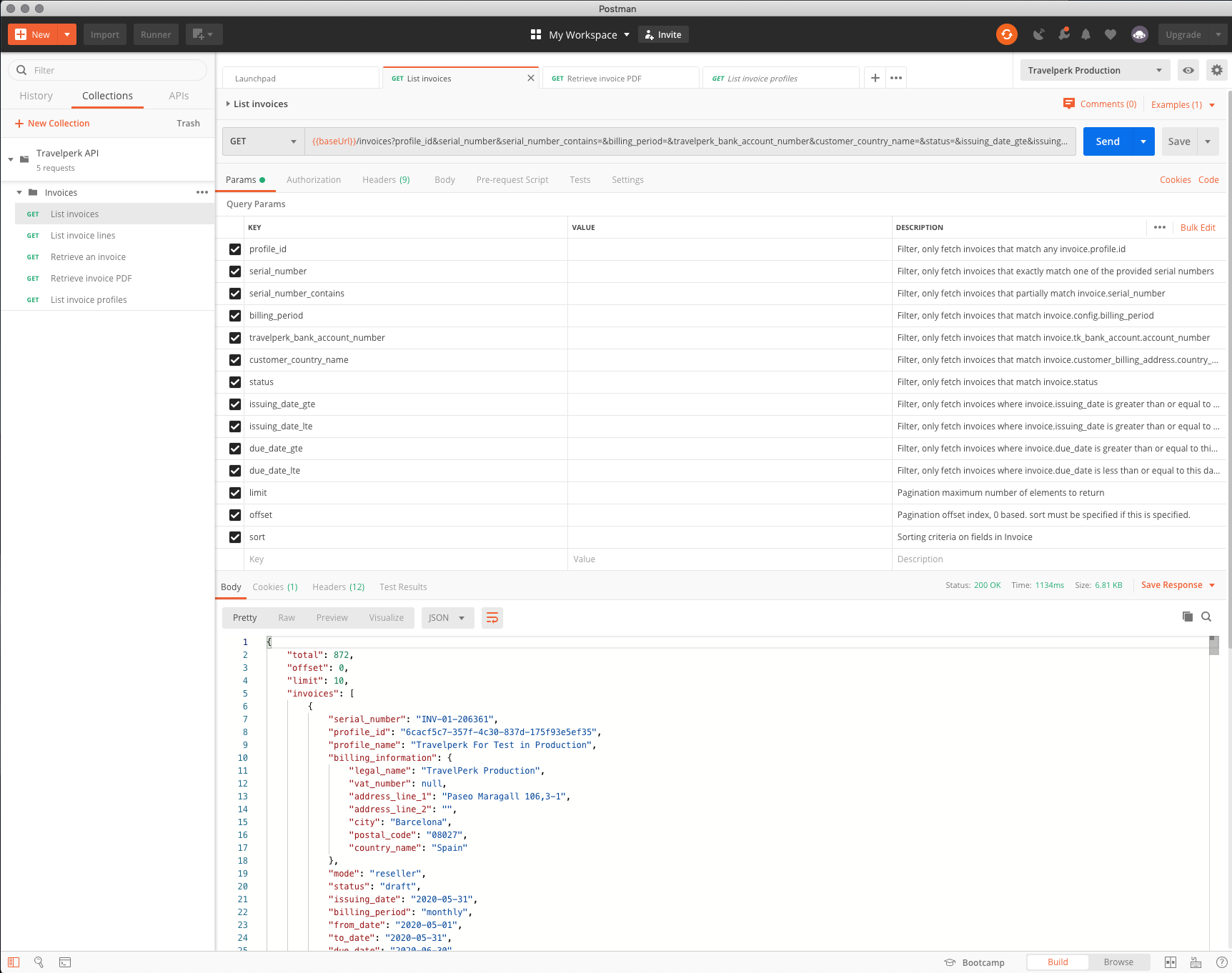
Once the environment is configured, you can follow these steps to execute a API method. We are reproducing the steps to make a GET a list of all invoices.
- Select the environment you want to work with.

- Select the relevant API method in the collection folder.
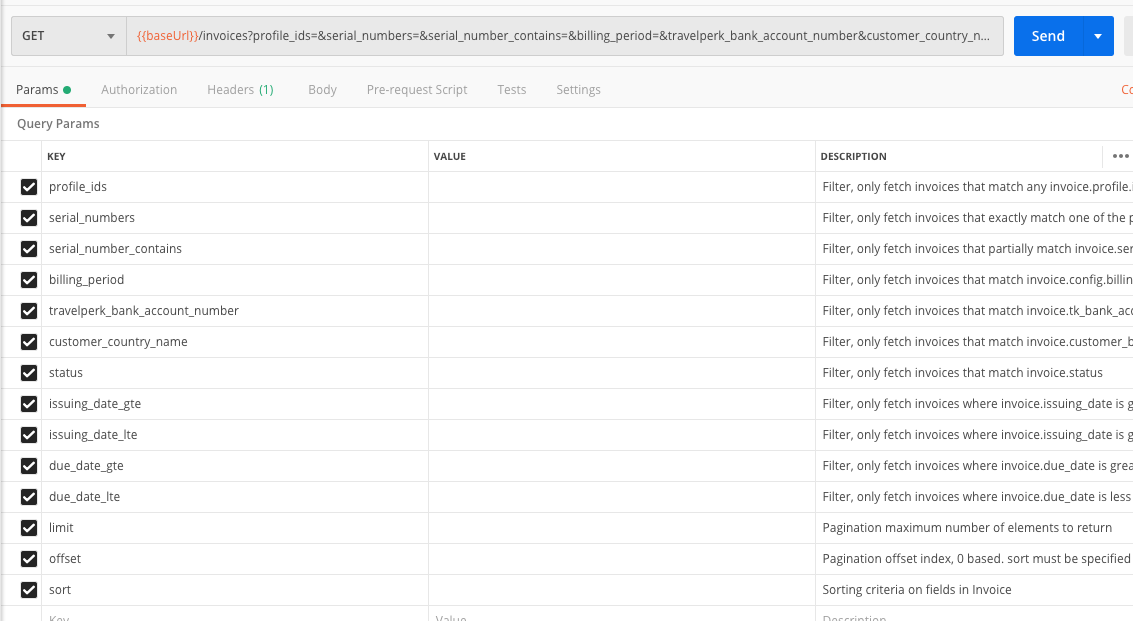
- Enter any desired filter as a query parameter.
- Click the Send button.
Updated 6 days ago