

Getting started for customers
Get up and running with the Perk API and start developing your integration.
- Get your API key so Perk can authenticate your requests
- Import the Postman collection to explore all available endpoints
- Make an API request using Postman or cURL
In this quickstart guide, you'll retrieve all expenses for a particular date.
Step 1 - Get your API key
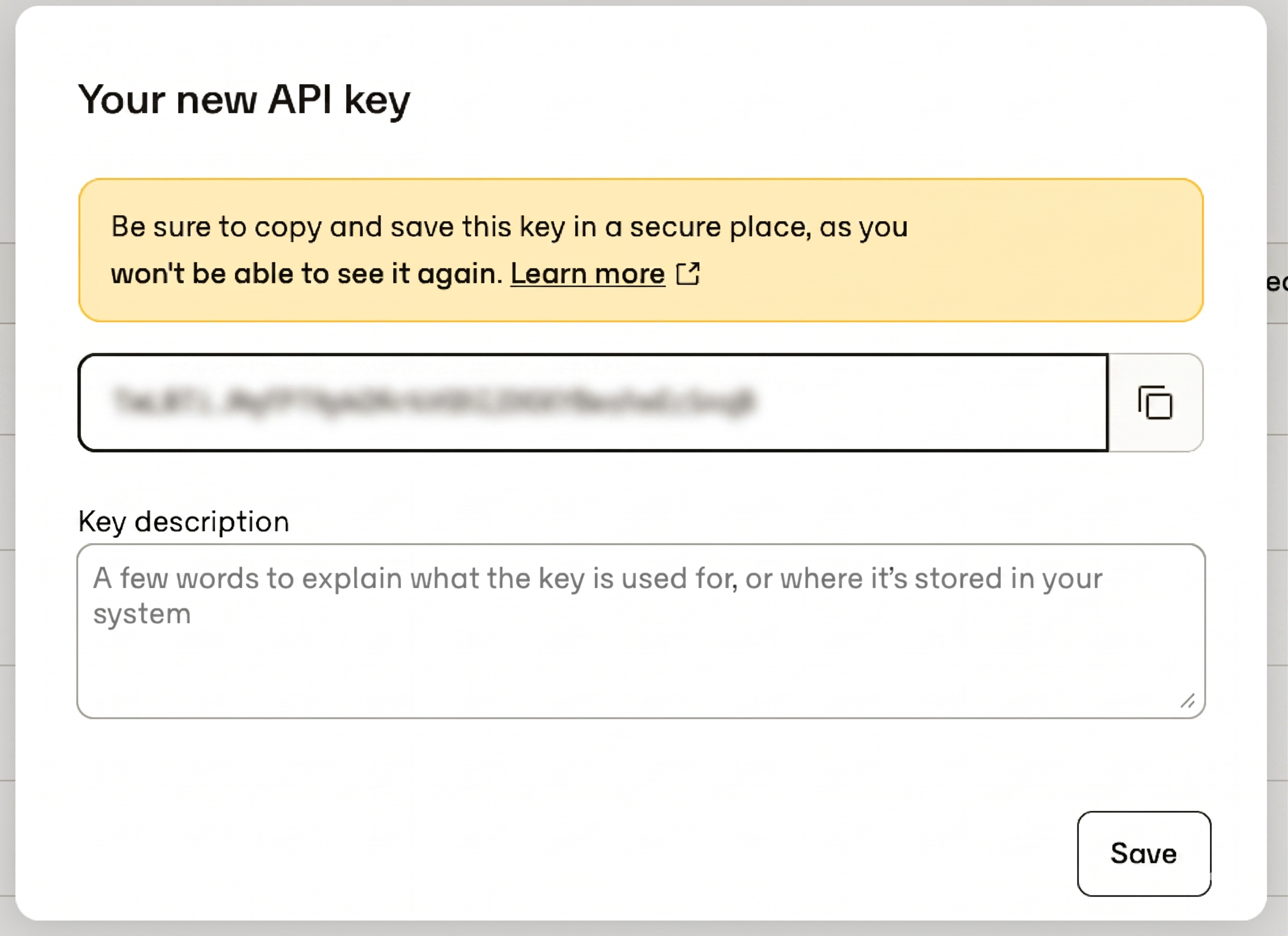
Use an API key if you're a Perk customer accessing your own data. Account admins can manage API keys in Settings > Developer tools > API tools. The key value only appears once when it's created, so save it somewhere secure right away.
Storing API keysAPI keys have the same access rights as an account admin in your company. Store them securely and don't share them in publicly accessible areas such as GitHub.
Step 2 - Import the Postman collection
To import the Postman collection, you'll need the Postman app for Windows, MacOS, or Chrome. You can download any of these from the Postman apps page.
Then, use this button to import the collection:

Postman prompts whether you want to open the Collection in Postman for Chrome or Postman for Windows/Mac. Select the application you installed.
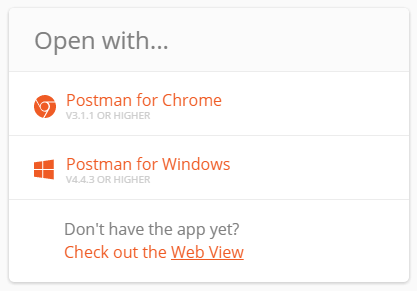
Once you make a selection, the selected Postman application will open and the collection will start to import.
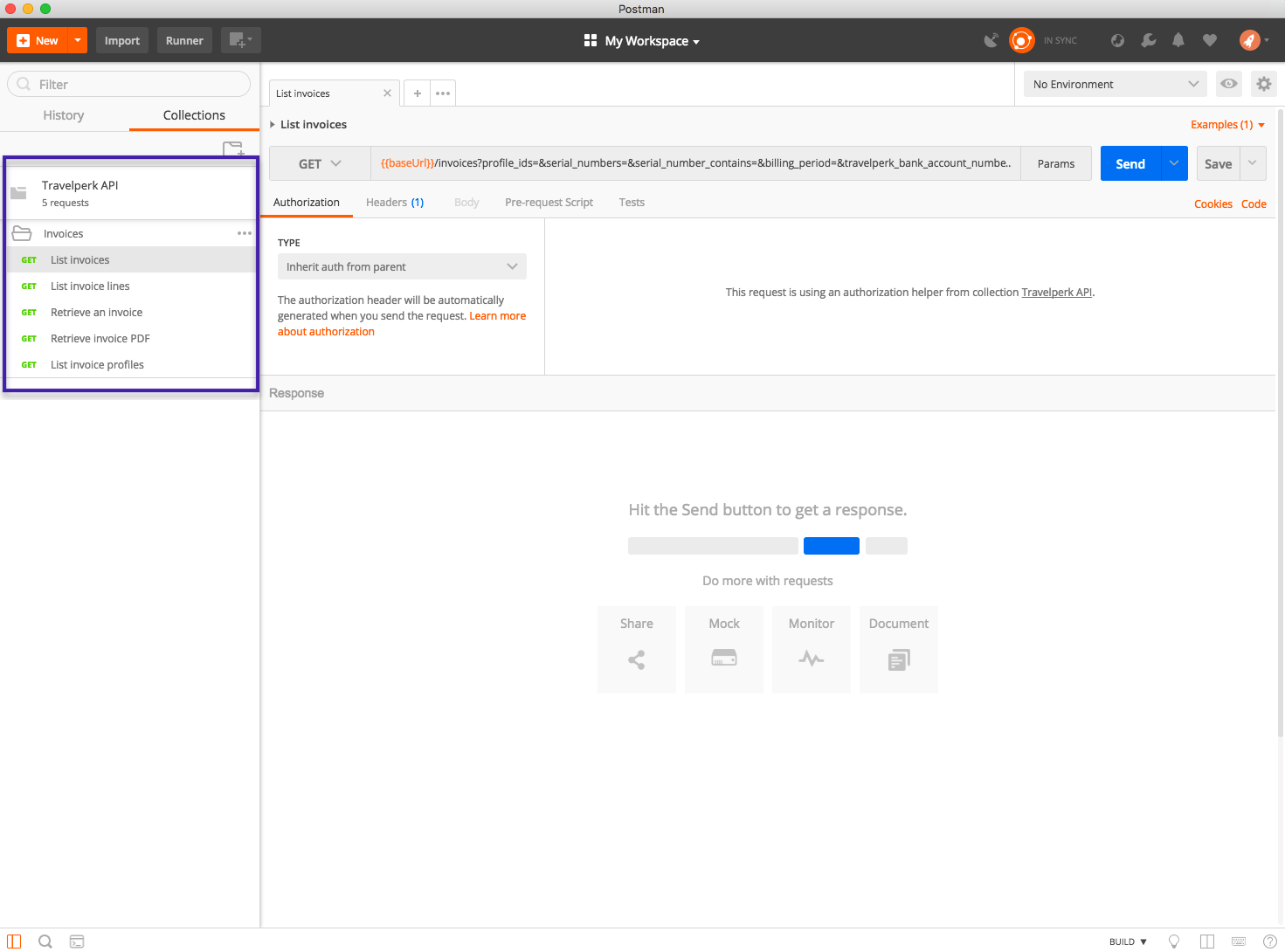
Step 3a - Make an API request using Postman
You'll retrieve all expenses for 2020-05-25 using the List all invoice lines endpoint with expense_date_gte and expense_date_lte.
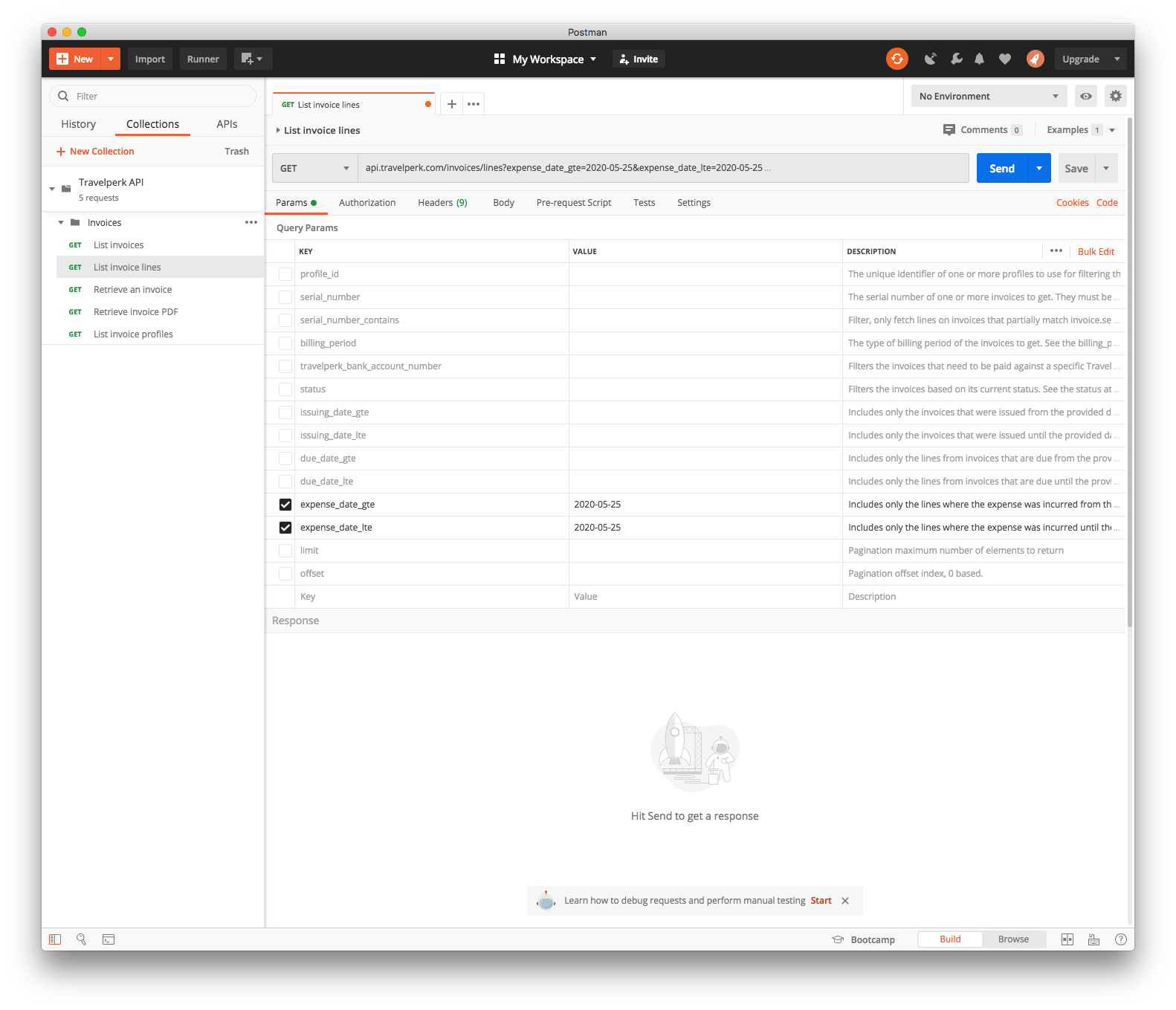
Add the API key you got in Step 1 to the Authorization header.
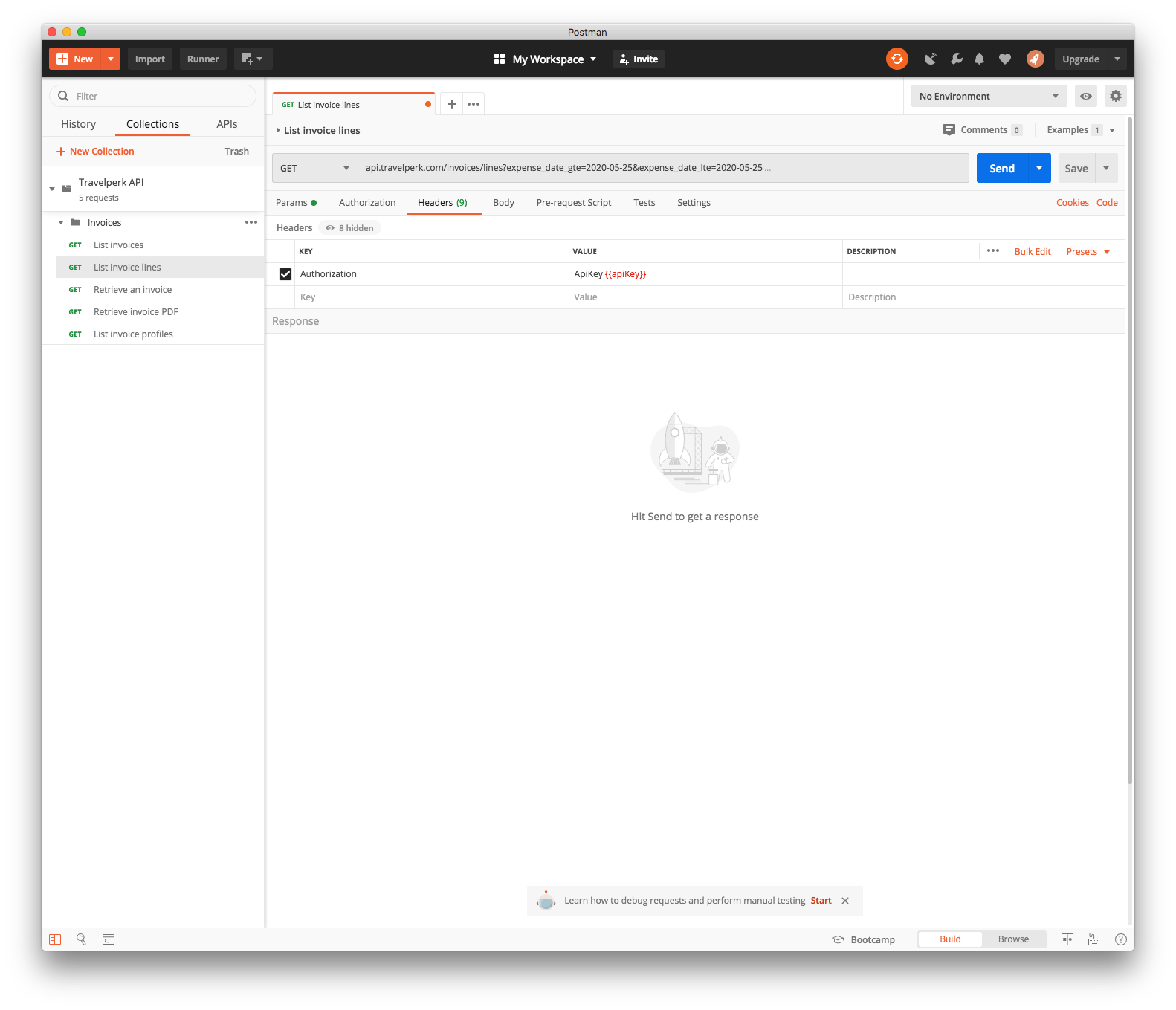
Press Send, and the request returns all expenses for the date selected.
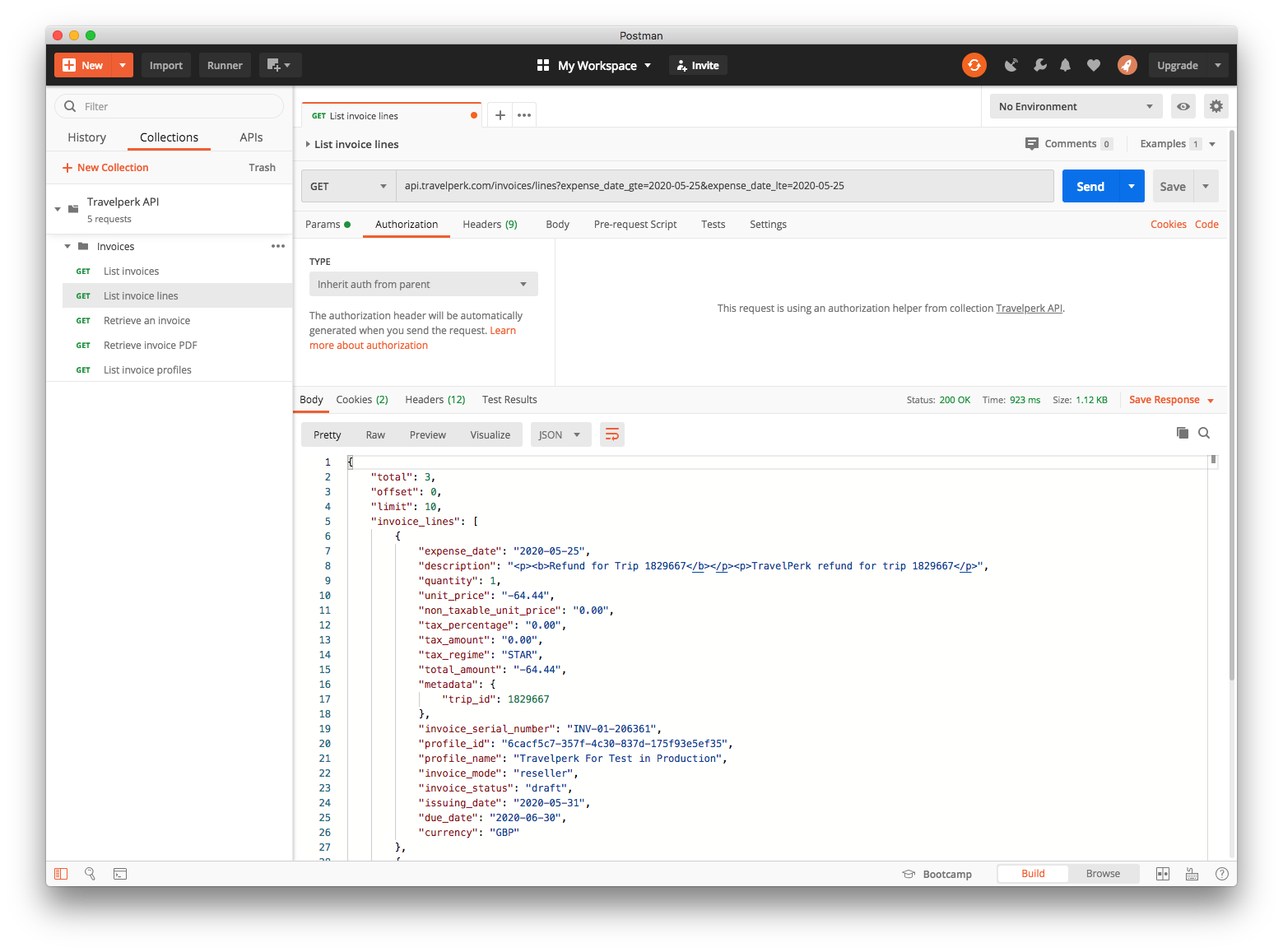
Step 3b - Make an API request using cURL
If you'd rather skip Postman, you can make the same request with cURL. The example below retrieves all expenses for 2020-05-25 using the List all invoice lines endpoint with expense_date_gte and expense_date_lte.
curl \
  --url "https://api.perk.com/invoices/lines?expense_date_gte=2020-05-25&expense_date_lte=2020-05-25" \
  --header "Authorization: apikey <your_api_key>"  \
  --header "Api-Version: 1"
Bearer scheme also acceptedYou can also pass your API key using the Bearer scheme: Authorization: Bearer <your_api_key>
The request returns all expenses for the date selected.
{
    "total": 1,
    "offset": 0,
    "limit": 10,
    "invoice_lines": [
        {
            "expense_date": "2020-05-25",
            "description": "FLIGHT for Trip ID 1687664",
            "quantity": 1,
            "unit_price": "20.00",
            "non_taxable_unit_price": "0.00",
            "tax_percentage": "0.00",
            "tax_amount": "0.00",
            "tax_regime": "STAR",
            "total_amount": "20.00",
            "metadata": {
              "trip_id": 1687664,
              "trip_name": "Meeting with German company GmbH",
              "service": "flight",
              "travelers": [
                { "name": "John Doe", "email": "[email protected]", "external_id": "ASD123"
                }
              ],
            	"start_date": "2020-03-27",
              "end_date": "2020-04-05",
              "cost_center": "DACH Accounts",
              "labels": [ "Sales trips", "Special",],
              "vendor": {"code": "LH", "name": "Lufthansa"},
              "out_of_policy": false,
              "approvers": [
                { "name": "Jake Bolt", "email": "[email protected]", "external_id": "ASD124"
                }
              ]
            },
          "invoice_serial_number": "INV-01-190111",
          "profile_id": "09d649d1-35fa-4d9f-b688-046d5790afd2",
          "profile_name": "My Company Ltd",
          "invoice_mode": "reseller",
          "invoice_status": "paid",
          "issuing_date": "2020-05-25",
          "due_date": "2020-05-25",
          "currency": "EUR"
        }
    ]
}
Updated 3 months ago